
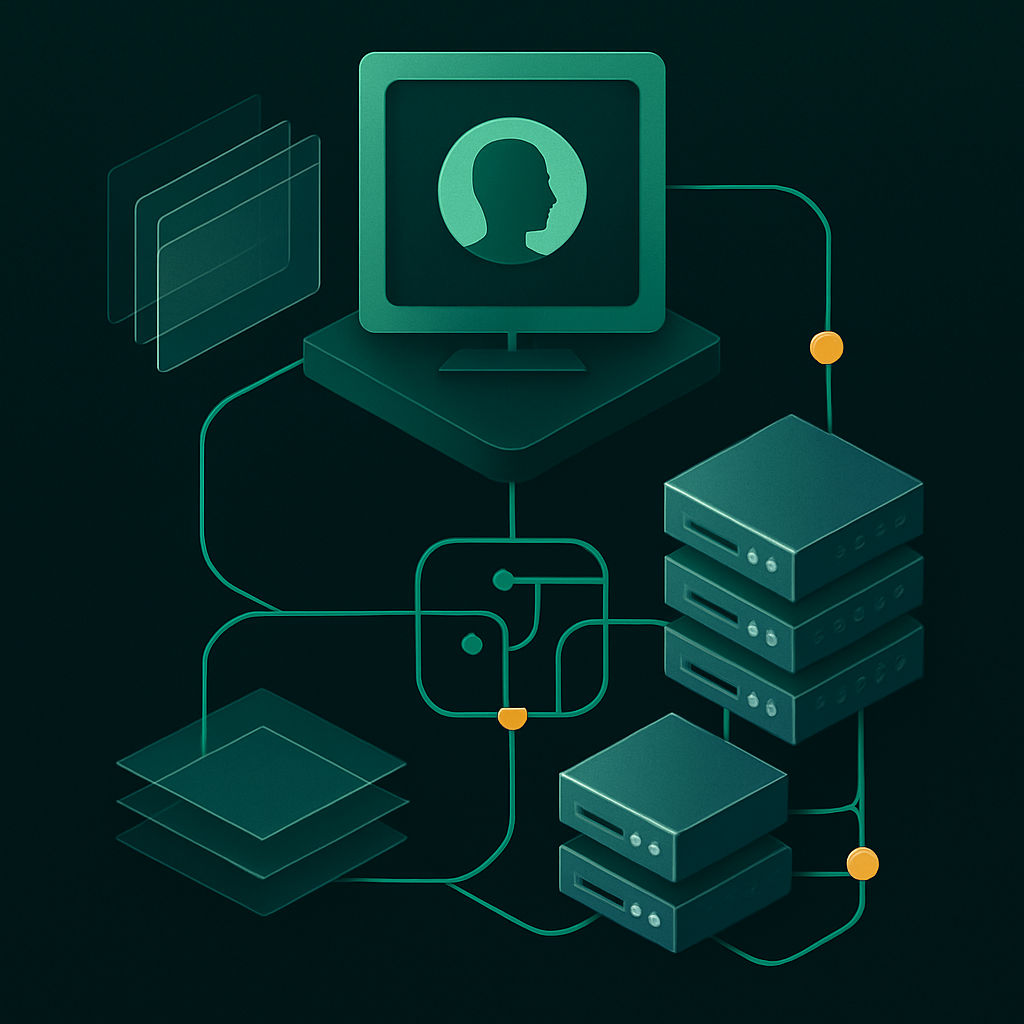
Understanding the Configuration File
Claude Desktop uses a JSON configuration file to manage MCP server connections. This file defines which servers to start, how to start them, and what arguments to pass.
Configuration File Architecture
The MCP configuration file operates on a declarative model where each server definition becomes an independent process managed by Claude Desktop. The configuration system supports sophisticated server orchestration, including lifecycle management, dependency resolution, and graceful failure handling. When Claude Desktop initializes, it performs a multi-stage configuration validation process: JSON schema validation, executable path resolution, environment variable substitution, and dependency graph analysis.
Understanding the execution context is crucial for proper configuration. Claude Desktop spawns each MCP server as a child process with specific environmental constraints. The parent process maintains persistent JSON-RPC connections over standard input/output streams, enabling real-time bidirectional communication. This architecture provides process isolation while maintaining low-latency communication essential for responsive AI interactions.
Configuration Loading Sequence
The configuration loading process follows a strict sequence that determines server availability and connection reliability:
- File Discovery: Claude Desktop searches for the configuration file in platform-specific locations with defined precedence rules
- Schema Validation: The JSON structure undergoes strict validation against the MCP configuration schema, rejecting malformed configurations immediately
- Environment Resolution: Environment variables are expanded and validated, with missing variables causing configuration failures
- Executable Verification: Each server's command path is resolved and execution permissions verified before process spawning
- Dependency Analysis: Server dependencies are analyzed to determine optimal startup ordering and prevent circular dependencies
JSON Schema and Validation
The configuration file adheres to a strict JSON schema that enforces both structural integrity and semantic correctness. Key validation rules include mandatory fields (command), optional fields with type constraints (args as string array, env as object), and cross-field validation (environment variable references). The schema supports advanced features like conditional validation based on server types and platform-specific field requirements.
{
  "$schema": "mcp://configuration/v1",
  "mcpServers": {
    "type": "object",
    "patternProperties": {
      "^[a-zA-Z0-9_-]+$": {
        "type": "object",
        "required": ["command"],
        "properties": {
          "command": {"type": "string", "minLength": 1},
          "args": {"type": "array", "items": {"type": "string"}},
          "env": {"type": "object", "additionalProperties": {"type": "string"}}
        }
      }
    }
  }
}
Process Management and Communication
Each configured MCP server operates as an independent system process with Claude Desktop acting as the process supervisor. The communication protocol uses JSON-RPC 2.0 over stdin/stdout, providing structured message exchange with built-in error handling and request/response correlation. This design enables fault isolation—if one server crashes or becomes unresponsive, other servers continue operating normally.
Claude Desktop implements sophisticated process lifecycle management including graceful shutdown procedures, automatic restart policies for critical servers, and resource monitoring. The configuration can specify process priority levels, memory limits, and CPU affinity settings for resource-constrained environments. Server health monitoring includes periodic ping requests, response time tracking, and automatic failover mechanisms for redundant server configurations.
Dynamic Configuration Capabilities
Advanced configurations support dynamic server management through environment-based conditional loading and runtime parameter injection. This enables deployment scenarios where server availability depends on external conditions like database connectivity, API key validity, or resource availability. The configuration system supports template expansion using environment variables, allowing single configuration files to work across development, staging, and production environments.
Hot configuration reloading is supported for non-destructive changes like argument modifications or environment variable updates. However, changes requiring process restart (executable path, critical arguments) trigger controlled server shutdown and restart sequences to maintain connection integrity.
Configuration File Location
macOS
~/Library/Application Support/Claude/claude_desktop_config.jsonWindows
%APPDATA%\Claude\claude_desktop_config.jsonCross-Platform File Management
If the file doesn't exist, create it with an empty JSON object: `{}` **Validation and backup strategies:** - Always validate JSON syntax before saving using tools like `jq` or online JSON validators - Maintain version control of your configuration files using Git or similar systems - For enterprise deployments, consider configuration templates with environment-specific variables - Use file monitoring tools to detect unauthorized changes to configuration files **Permissions and security:** - Ensure the configuration file is readable only by the current user (`chmod 600` on macOS/Linux) - Avoid storing sensitive credentials directly in the configuration - use environment variables or secure credential stores - Regular auditing of MCP server configurations helps maintain security compliance in enterprise environments The configuration file supports hot-reloading in many scenarios, but complex changes may require restarting Claude Desktop to take effect. Monitor the application logs during configuration changes to ensure proper loading of MCP servers.Basic Configuration Structure
{
  "mcpServers": {
    "server-name": {
      "command": "executable",
      "args": ["arg1", "arg2"],
      "env": {
        "ENV_VAR": "value"
      }
    }
  }
}Configuration Fields
- command: The executable to run (e.g., "node", "python", "npx")
- args: Array of command-line arguments
- env: Optional environment variables for the server process
Detailed Field Specifications
The command field requires careful consideration of executable paths and runtime environments. For system-wide installations, you can use simple command names like "python" or "node". However, for more robust configurations, specify absolute paths to ensure consistency across different environments:
"command": "/usr/local/bin/python3.11"
"command": "/opt/homebrew/bin/node"
"command": "C:\\Program Files\\Python311\\python.exe"
The args array provides extensive flexibility for server customization. Beyond basic script paths, you can configure runtime parameters, debugging options, and server-specific settings:
"args": [
  "/path/to/server.py",
  "--host", "127.0.0.1",
  "--port", "8080",
  "--log-level", "debug",
  "--max-connections", "100"
]
Environment variables in the env object serve multiple critical functions: authentication, configuration overrides, and runtime behavior modification. These variables are isolated to each server process, preventing cross-contamination between different MCP servers:
"env": {
  "API_TOKEN": "${OPENAI_API_KEY}",
  "DATABASE_URL": "sqlite:///./local.db",
  "PYTHONPATH": "/custom/modules",
  "LOG_LEVEL": "INFO",
  "TIMEOUT_SECONDS": "30"
}
Advanced Configuration Options
Beyond the core fields, Claude Desktop supports several advanced configuration options that provide additional control over server behavior:
- disabled: Boolean flag to temporarily disable a server without removing its configuration
- alwaysAllow: Bypasses permission prompts for trusted servers (use with extreme caution)
- initializationTimeoutMs: Custom timeout for server startup (default: 10000ms)
- heartbeatIntervalMs: Health check frequency for long-running servers
{
  "mcpServers": {
    "trusted-internal-server": {
      "command": "python",
      "args": ["/internal/tools/server.py"],
      "alwaysAllow": true,
      "initializationTimeoutMs": 15000,
      "env": {
        "TRUST_LEVEL": "internal"
      }
    },
    "experimental-server": {
      "command": "node",
      "args": ["./experimental/server.js"],
      "disabled": true,
      "env": {
        "NODE_ENV": "development"
      }
    }
  }
}
Configuration Validation and Error Handling
Claude Desktop performs comprehensive validation of the configuration file during startup. Common validation errors include missing required fields, invalid JSON syntax, and unreachable executables. The validation process checks:
- JSON syntax correctness and schema compliance
- Executable accessibility and permissions
- Environment variable resolution
- Port conflicts between multiple servers
- Resource allocation limits
To ensure robust configuration management, implement a validation workflow using tools like JSON Schema validators or custom scripts that verify server accessibility before deploying configuration changes to production environments.
Example: Multiple MCP Servers
{
  "mcpServers": {
    "filesystem": {
      "command": "npx",
      "args": ["-y", "@modelcontextprotocol/server-filesystem", "/Users/me/projects"]
    },
    "postgres": {
      "command": "npx",
      "args": ["-y", "@modelcontextprotocol/server-postgres"],
      "env": {
        "POSTGRES_CONNECTION_STRING": "postgresql://user:pass@localhost/mydb"
      }
    },
    "github": {
      "command": "npx",
      "args": ["-y", "@modelcontextprotocol/server-github"],
      "env": {
        "GITHUB_PERSONAL_ACCESS_TOKEN": "ghp_xxxxxxxxxxxx"
      }
    }
  }
}
Server Orchestration Patterns
When managing multiple MCP servers, establishing clear orchestration patterns prevents resource conflicts and ensures reliable startup sequences. Critical servers should be configured with dependency awareness—for instance, a custom analytics server might depend on both the PostgreSQL server for data access and the filesystem server for log file management. The server naming convention becomes crucial at scale. Use descriptive names that indicate both function and environment:postgres-analytics-prod, filesystem-docs-staging, or github-repo-scanner. This naming strategy simplifies debugging when reviewing Claude Desktop logs and helps teams understand server relationships at a glance.
Consider implementing server groups through configuration organization. Group related servers by function or data domain:
{
  "mcpServers": {
    "data-postgres-primary": { "command": "npx", "args": [...] },
    "data-redis-cache": { "command": "python", "args": [...] },
    "integration-github-main": { "command": "npx", "args": [...] },
    "integration-slack-notifications": { "command": "python", "args": [...] },
    "filesystem-project-root": { "command": "npx", "args": [...] }
  }
}
Resource Management and Performance Optimization
Multiple concurrent MCP servers can create resource contention, particularly around file system access and network connections. Implement resource budgeting by configuring servers with appropriate memory limits and connection pools. For database-backed servers, use connection pooling parameters to prevent exhausting database connections:"postgres": {
"command": "npx",
"args": ["-y", "@modelcontextprotocol/server-postgres"],
"env": {
"POSTGRES_CONNECTION_STRING": "postgresql://user:pass@localhost/mydb?max_connections=5&connection_timeout=30",
"MCP_SERVER_POOL_SIZE": "3",
"NODE_OPTIONS": "--max-old-space-size=512"
}
}Configuration Validation Strategies
Implement configuration validation before deploying multi-server setups. Create validation scripts that verify: - **Environment Variable Availability**: Ensure all required tokens and connection strings are accessible - **Network Connectivity**: Test database connections, API endpoints, and file system permissions - **Server Compatibility**: Verify MCP protocol version compatibility across all configured servers - **Resource Accessibility**: Confirm file paths exist and are readable, API rate limits are reasonable A practical validation workflow involves creating avalidate-mcp-config.js script that tests each server configuration independently:
const config = require('./claude_desktop_config.json');
for (const [name, server] of Object.entries(config.mcpServers)) {
  console.log(`Validating ${name}...`);
  // Test command availability
  // Verify environment variables
  // Check resource accessibility
}
Environment-Specific Configuration Management
Multi-server configurations benefit significantly from environment-specific parameter injection. Rather than hardcoding production credentials or development file paths, use environment variable substitution patterns:{
"mcpServers": {
"postgres": {
"command": "npx",
"args": ["-y", "@modelcontextprotocol/server-postgres"],
"env": {
"POSTGRES_CONNECTION_STRING": "${DATABASE_URL}",
"MCP_LOG_LEVEL": "${MCP_LOG_LEVEL:-info}",
"SERVER_TIMEOUT": "${SERVER_TIMEOUT:-30000}"
}
}
}
}Monitoring and Health Management
Enterprise multi-server deployments require comprehensive health monitoring. Implement server health endpoints that Claude Desktop can periodically check, and configure logging levels that provide visibility into server interactions without overwhelming log storage. Establish server dependency mapping to understand cascade failure scenarios. If the PostgreSQL server fails, which other servers become non-functional? Document these relationships and implement graceful degradation patterns where possible, allowing critical workflows to continue even when non-essential servers are unavailable.Using Python-Based MCP Servers
Python-based MCP servers offer exceptional flexibility and rapid development cycles, making them ideal for custom enterprise integrations and prototyping. The Model Context Protocol's Python SDK provides comprehensive tools for building sophisticated servers that can integrate with databases, APIs, file systems, and complex business logic.Configuration Patterns
{
  "mcpServers": {
    "custom-server": {
      "command": "python",
      "args": ["-m", "my_mcp_server"],
      "env": {
        "PYTHONPATH": "/path/to/your/server"
      }
    }
  }
}Virtual Environment Integration
Production deployments should leverage virtual environments to ensure dependency isolation and version consistency:{
"mcpServers": {
"production-server": {
"command": "/opt/mcp-servers/venv/bin/python",
"args": ["-m", "enterprise_mcp_server"],
"env": {
"VIRTUAL_ENV": "/opt/mcp-servers/venv",
"PATH": "/opt/mcp-servers/venv/bin:/usr/local/bin:/usr/bin:/bin",
"PYTHONPATH": "/opt/mcp-servers/src"
}
}
}
}Advanced Server Parameters
Python MCP servers often require additional configuration for database connections, API credentials, and logging levels:{
"mcpServers": {
"database-server": {
"command": "python",
"args": [
"-m", "mcp_database_server",
"--host", "localhost",
"--port", "5432",
"--log-level", "INFO"
],
"env": {
"DATABASE_URL": "postgresql://user:pass@localhost:5432/mydb",
"API_KEY": "${MCP_API_KEY}",
"LOG_FILE": "/var/log/mcp/database-server.log"
}
}
}
}Development vs. Production Configurations
Development environments benefit from enhanced debugging and auto-reload capabilities:{
"mcpServers": {
"dev-server": {
"command": "python",
"args": [
"-m", "watchdog.auto_restart",
"--directory", "/Users/dev/mcp-server",
"--pattern", "*.py",
"--",
"python", "-m", "my_mcp_server", "--debug"
],
"env": {
"PYTHONPATH": "/Users/dev/mcp-server",
"DEBUG": "true",
"LOG_LEVEL": "DEBUG"
}
}
}
}Package-Based Server Distribution
For enterprise deployments, packaging your MCP server as a proper Python package enables cleaner configuration and distribution:{
"mcpServers": {
"enterprise-crm": {
"command": "python",
"args": ["-m", "acme_corp_mcp.crm_server"],
"env": {
"CRM_CONFIG_PATH": "/etc/mcp/crm-config.json",
"CACHE_REDIS_URL": "redis://localhost:6379/0"
}
},
"enterprise-analytics": {
"command": "python",
"args": ["-m", "acme_corp_mcp.analytics_server", "--workers", "4"],
"env": {
"ANALYTICS_DB_URL": "postgresql://analytics:pass@db.internal:5432/analytics",
"MEMORY_LIMIT": "2GB"
}
}
}
}Monitoring and Health Checks
Production Python MCP servers should implement health monitoring endpoints and structured logging:{
"mcpServers": {
"monitored-server": {
"command": "python",
"args": [
"-m", "mcp_server_wrapper",
"--health-check-port", "8080",
"--metrics-port", "8081",
"--",
"-m", "actual_mcp_server"
],
"env": {
"HEALTH_CHECK_INTERVAL": "30",
"METRICS_ENABLED": "true",
"LOG_FORMAT": "json"
}
}
}
}Troubleshooting Connection Issues
Server Not Appearing in Claude
- Verify JSON syntax is valid (use a JSON validator)
- Ensure Claude Desktop was fully restarted
- Check that the command exists (try running it in terminal)
- Look for the MCP icon in Claude's interface
Advanced Troubleshooting Steps:
When basic checks fail, implement systematic debugging. First, validate your configuration file against the MCP schema. Many connection failures stem from subtle JSON syntax errors that aren't immediately obvious. Use online JSON validators or command-line tools like jq to verify structure:
# Validate JSON structure
cat claude_desktop_config.json | jq '.'

# Check specific MCP configuration
cat claude_desktop_config.json | jq '.mcpServers'
If the JSON is valid but the server still doesn't appear, examine the command path resolution. Claude Desktop must be able to locate and execute your MCP server command. Test the exact command string from your configuration file in a terminal:
# Test direct command execution
node /path/to/server.js --version

# For Python servers
python3 /path/to/server.py --help

# For npm-installed servers
npx @modelcontextprotocol/server-filesystem --help
Connection timeouts often indicate server initialization issues. MCP servers must respond to the initialization handshake within Claude Desktop's timeout window (typically 10-30 seconds). Servers that take longer to start due to dependency loading or complex initialization routines will fail to connect.
Permission Errors
# On macOS, ensure directories are accessible
ls -la ~/Library/Application\ Support/Claude/

# Check if the MCP server can access target directories
npx @modelcontextprotocol/server-filesystem /path/to/check
Comprehensive Permission Analysis:
Permission issues extend beyond simple file access. MCP servers often require cascading permissions across multiple system layers. Start with basic directory permissions, then examine process-level security contexts.
On macOS, System Integrity Protection (SIP) and Gatekeeper can prevent MCP servers from accessing certain directories. Check if your MCP server needs access to protected locations:
# Check SIP status
csrutil status

# Verify directory permissions recursively
find /target/directory -type d -exec ls -ld {} \; | head -20

# Test server permissions with restricted user context
sudo -u _nobody npx @modelcontextprotocol/server-filesystem /path/to/test
For Windows environments, User Account Control (UAC) and Windows Defender can interfere with MCP server operations. Ensure Claude Desktop and MCP servers have appropriate execution permissions:
# PowerShell: Check execution policy
Get-ExecutionPolicy -List

# Test file access from server context
Get-Acl "C:\path\to\directory" | Format-List
Network-based MCP servers face additional permission challenges. Firewall rules, port availability, and network security policies can block server communication. Verify network accessibility using tools like netstat and telnet to ensure servers can bind to required ports.
Viewing Server Logs
MCP server output goes to Claude Desktop's logs:
- macOS:
~/Library/Logs/Claude/ - Windows: Check Event Viewer or %LOCALAPPDATA%\Claude\logs
Advanced Log Analysis Techniques:
Effective log analysis requires understanding MCP communication patterns and common failure modes. Claude Desktop logs capture both client-side and server-side communication, including JSON-RPC message exchanges and error states.
Enable verbose logging by modifying your MCP server configuration. Most servers accept debug flags that increase log verbosity:
{
  "mcpServers": {
    "filesystem": {
      "command": "npx",
      "args": ["@modelcontextprotocol/server-filesystem", "/path", "--verbose"],
      "env": {
        "DEBUG": "mcp:*",
        "LOG_LEVEL": "debug"
      }
    }
  }
}
Monitor logs in real-time during connection attempts to capture initialization sequences:
# macOS: Real-time log monitoring
tail -f ~/Library/Logs/Claude/claude-desktop.log | grep -i mcp

# Windows: PowerShell log monitoring
Get-Content -Wait -Tail 50 "$env:LOCALAPPDATA\Claude\logs\claude-desktop.log"
Common log patterns indicate specific failure modes:
- Connection timeout errors: Server takes too long to initialize or respond to handshake
- JSON-RPC protocol violations: Malformed messages or unsupported method calls
- Resource access denials: Server cannot access configured directories or services
- Dependency resolution failures: Missing Node.js modules or Python packages
For persistent debugging, implement structured logging within custom MCP servers. Use logging frameworks that support JSON output for easier parsing and analysis:
import logging
import json

# Configure structured logging
logging.basicConfig(
    level=logging.DEBUG,
    format='%(asctime)s %(levelname)s %(message)s',
    handlers=[
        logging.FileHandler('/tmp/mcp-server.log'),
        logging.StreamHandler()
    ]
)

# Log MCP protocol events
logger.info(json.dumps({
    "event": "server_initialized",
    "capabilities": ["resources", "tools"],
    "timestamp": datetime.utcnow().isoformat()
}))
Security Best Practices
- Principle of least privilege: Only grant access to directories you need
- Use read-only servers: For production data, prefer read-only access
- Rotate tokens: Regularly update API tokens in environment variables
- Audit access: Keep track of what data sources are connected
Advanced Authentication and Token Management
Beyond basic token rotation, implement a comprehensive credential lifecycle management strategy. Configure tokens with expiration dates and automated renewal processes:
{
  "mcpServers": {
    "secure-api": {
      "command": "node",
      "args": ["server.js"],
      "env": {
        "API_TOKEN": "${SECURE_API_TOKEN}",
        "TOKEN_REFRESH_URL": "${TOKEN_REFRESH_ENDPOINT}",
        "TOKEN_EXPIRY": "3600"
      }
    }
  }
}
Store sensitive credentials in secure environment variable management systems like HashiCorp Vault, AWS Secrets Manager, or Azure Key Vault. Never hardcode credentials directly in configuration files, and implement automated credential rotation with a 30-60 day cycle for production environments.
Path Sandboxing and File System Security
Implement strict path validation to prevent directory traversal attacks. Configure MCP servers with explicit allowlists for accessible directories and enforce canonical path resolution:
{
  "mcpServers": {
    "filesystem": {
      "command": "npx",
      "args": ["-y", "@modelcontextprotocol/server-filesystem", "/approved/data/path"],
      "env": {
        "ALLOWED_PATHS": "/approved/data/path,/public/docs",
        "ENFORCE_CANONICAL_PATHS": "true",
        "READONLY_MODE": "true"
      }
    }
  }
}
Establish directory-level permissions that align with your organization's data classification scheme. Critical business data should only be accessible through dedicated, monitored MCP servers with enhanced logging capabilities.
Network Security and Transport Layer Protection
Configure TLS certificate validation for all external MCP server connections. Implement certificate pinning for high-security environments and establish secure communication channels using mutual TLS authentication where possible. For enterprise deployments, consider implementing network segmentation with dedicated VLANs or VPCs for MCP traffic.
Monitor network traffic patterns to detect anomalous behavior, such as unexpected data volumes or unusual access patterns that might indicate compromised credentials or unauthorized access attempts. Establish baseline metrics for normal MCP server communication and implement alerting for deviations exceeding 2-3 standard deviations.
Capability Restriction and Server Hardening
Configure MCP servers with minimal capability sets required for their intended function. Disable unnecessary features and implement strict input validation for all server parameters:
{
  "mcpServers": {
    "restricted-server": {
      "command": "python",
      "args": ["-m", "secure_mcp_server"],
      "env": {
        "DISABLE_WRITE_OPERATIONS": "true",
        "MAX_FILE_SIZE": "50MB",
        "ALLOWED_EXTENSIONS": ".txt,.json,.csv,.md",
        "RATE_LIMIT_REQUESTS": "100"
      }
    }
  }
}
Implement resource limits to prevent denial-of-service attacks, including maximum file sizes, request rate limits, and memory consumption boundaries. Regular security assessments should validate that these restrictions remain appropriate as your usage patterns evolve.
Compliance and Audit Trail Management
Establish comprehensive logging for all MCP server interactions, including connection attempts, data access patterns, and configuration changes. Configure log retention policies that align with regulatory requirements, typically 90 days for operational logs and 7 years for audit trails in regulated industries.
Implement automated compliance monitoring that validates server configurations against established security baselines. Generate monthly security reports that document server access patterns, credential rotation status, and any security incidents or configuration drift detected during the reporting period.
Enterprise Deployment
For organization-wide deployment:
- Create a standard config template for your team
- Use environment variables for secrets (not hardcoded in config)
- Document which MCP servers are approved for use
- Consider containerized MCP servers for sensitive data
Configuration Template Management
Enterprise deployments require standardized configuration templates that can be distributed and maintained at scale. Create a base template that includes your organization's approved MCP servers, security parameters, and compliance requirements:
{
  "mcpServers": {
    "enterprise-database": {
      "command": "python",
      "args": ["-m", "org.mcp.database"],
      "env": {
        "DB_CONNECTION": "${ENTERPRISE_DB_URL}",
        "LOG_LEVEL": "INFO",
        "AUDIT_ENABLED": "true"
      }
    },
    "secure-filesystem": {
      "command": "docker",
      "args": ["run", "--rm", "-v", "${WORKSPACE_PATH}:/workspace", "org/mcp-filesystem:latest"],
      "env": {
        "SECURITY_POLICY": "enterprise",
        "ACCESS_CONTROL": "rbac"
      }
    }
  },
  "globalSettings": {
    "auditLogging": true,
    "encryptionRequired": true,
    "allowedNetworks": ["10.0.0.0/8", "192.168.0.0/16"]
  }
}
Use configuration management tools like Ansible, Chef, or Group Policy to distribute and maintain these templates across your organization. Version control your templates to track changes and enable rollback capabilities when issues arise.
Secrets and Environment Variable Management
Never hardcode sensitive information in configuration files. Implement a robust secrets management strategy using enterprise tools like HashiCorp Vault, AWS Secrets Manager, or Azure Key Vault. Configure environment variables that pull from these secure stores:
- Database credentials: Store connection strings and authentication tokens in encrypted vaults
- API keys: Rotate keys regularly and use scoped permissions
- File system paths: Use variables for directory locations to support different deployment environments
- Network configurations: Abstract endpoint URLs and port configurations
Implement automated credential rotation with a maximum lifetime of 90 days for database connections and 30 days for API keys. This reduces the impact of potential credential compromise while maintaining operational continuity.
Server Approval and Governance
Establish a formal approval process for MCP servers before they can be deployed in your enterprise environment. Create a security review checklist that includes:
- Code review requirements: All custom servers must pass security scanning and peer review
- Third-party server validation: Verify the provenance and security posture of external MCP servers
- Data access patterns: Document what data each server can access and why
- Network security: Ensure servers operate within defined network boundaries
- Compliance alignment: Verify servers meet industry regulations (GDPR, SOX, HIPAA)
Maintain an enterprise server registry with approved versions, security ratings, and usage guidelines. Implement automated scanning to detect unauthorized servers and alert security teams immediately.
Containerization Strategy
Deploy MCP servers in containerized environments for enhanced security isolation and scalability. Use enterprise container platforms like OpenShift, Rancher, or managed Kubernetes services. Key benefits include:
- Resource isolation: Prevent servers from consuming excessive system resources
- Security boundaries: Limit server access to only required system components
- Consistent environments: Ensure servers run identically across development, staging, and production
- Rapid deployment: Enable quick provisioning and scaling of server instances
Implement container security best practices including non-root user execution, read-only file systems where possible, and network policies that restrict inter-container communication. Use enterprise image registries with vulnerability scanning to ensure container security.
Monitoring and Compliance
Deploy comprehensive monitoring solutions that track MCP server usage, performance, and security events. Enterprise monitoring should include:
- Performance metrics: Response times, resource utilization, and error rates
- Security events: Failed authentication attempts, unauthorized access, and data exfiltration indicators
- Compliance reporting: Automated generation of audit reports for regulatory requirements
- Usage analytics: Track which servers are most utilized to optimize resource allocation
Integrate with existing enterprise SIEM systems to correlate MCP server events with broader security monitoring. Set up automated alerting for security incidents with escalation procedures that align with your organization's incident response framework.
Change Management and Updates
Implement controlled change management processes for MCP server updates and configuration modifications. Use blue-green deployments or canary releases to minimize risk during updates. Establish maintenance windows and communicate changes to affected users through your organization's change management system.
Create automated testing pipelines that validate server functionality after updates, including integration tests that verify connectivity with Claude Desktop and data access patterns. Maintain rollback procedures that can quickly restore previous configurations if issues arise during deployment.
Conclusion
Proper MCP configuration unlocks Claude's full potential for accessing your enterprise data. Start with simple file access, validate it works, then expand to databases and external services.
Implementation Roadmap
Deploy MCP servers systematically to maximize success rates. Begin with read-only file system access to establish baseline functionality, then progressively add database connections, API integrations, and custom business logic servers. This staged approach allows teams to validate each configuration layer before introducing complexity.
Most successful enterprise deployments follow a 3-phase pattern: development sandbox (single developer, local files), team integration (shared databases, version control), and production scaling (containerized servers, monitoring, failover). Each phase validates configuration patterns before advancing.
Configuration Management at Scale
Enterprise environments require centralized configuration management to maintain consistency across hundreds of developer workstations. Deploy configuration files through existing IT management tools, using templated JSON structures with environment-specific variables for server endpoints, credentials, and resource paths.
Standardize on configuration schemas that separate server definitions, authentication methods, and resource permissions. This separation enables role-based access controls where developers inherit server configurations based on team membership, project assignments, or security clearance levels.
Version control all configuration templates and maintain audit trails for changes. When server endpoints change or new MCP capabilities deploy, configuration updates can roll out systematically rather than requiring manual developer intervention.
Monitoring and Maintenance
Establish monitoring for MCP server health, connection success rates, and resource utilization patterns. Track metrics like average response times, error rates by server type, and peak usage periods to optimize server deployment strategies.
Configure automated alerts for server failures, authentication issues, or unusual access patterns. Many enterprises integrate MCP monitoring with existing observability platforms, correlating Claude usage patterns with business workflows and data access requirements.
Plan regular maintenance windows for server updates, configuration refreshes, and security credential rotation. Document rollback procedures for configuration changes that impact multiple users simultaneously.
Future-Proofing Your Implementation
The MCP ecosystem evolves rapidly, with new server types, authentication methods, and integration patterns emerging regularly. Design configuration architectures that accommodate new server types without requiring wholesale changes to existing setups.
Invest in standardized naming conventions, consistent logging formats, and modular configuration structures. These practices simplify migrations when upgrading Claude Desktop versions or adopting new MCP server implementations.
Stay engaged with the MCP community through GitHub repositories, documentation updates, and enterprise user forums. Early adopters often share configuration patterns, troubleshooting approaches, and integration strategies that benefit broader implementations.
Success with MCP configuration requires balancing immediate productivity gains with long-term scalability requirements. The configuration patterns established in initial deployments often determine the complexity and maintenance overhead for years of operation. Invest early in clean, documented, and extensible configuration architectures that grow with your organization's Claude adoption.